
SaaS Integrations Page Design: Help Buyers (and AI) Answer “Does It Work With X?”
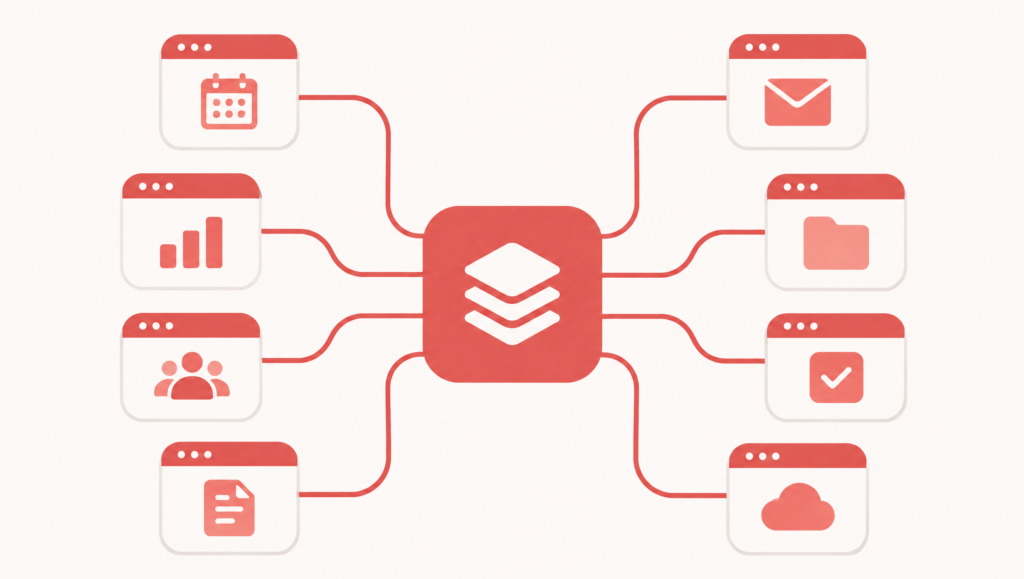
SaaS integrations page design gets less attention than the homepage, yet it answers one of the most common buyer questions: does your product work with the tools we already use? When the answer is hard to find, that question moves to a sales call or a support ticket.
This guide covers why the question matters, how to structure a hub plus one page per integration, what each page needs, how to handle filters and search and how to keep it accurate. At the end you get a template with 7 fixed blocks.
Short answer: build an integrations hub that links to a separate, crawlable page for each integration. Every page should say what syncs, in which direction, how long setup takes, which plan includes it and what the limits are, in plain HTML text.
Why “does it integrate with X?” matters so much
B2B buyers rarely replace their whole stack. Instead, they add one tool and expect it to connect to the CRM, the data warehouse and the chat tool. So the integration question often decides whether a product makes the shortlist.
AI assistants face the same question. When someone asks an AI tool whether two products integrate, it often runs several narrower searches behind the scenes, a pattern we explain in our guide to query fan-out. A dedicated page with a clear answer is far easier to find and cite than a logo in a grid.
Hub plus one page per integration
Most SaaS sites show a grid of logos on one page. That helps a human scan, but it gives search engines and AI tools almost nothing to read. Therefore, use two levels.
| Level | URL example | Job |
|---|---|---|
| Hub | /integrations/ | Browse, filter and search all integrations |
| Category | /integrations/crm/ | Optional, for large catalogs |
| Integration page | /integrations/salesforce/ | Answer every question about one connection |
Each logo in the hub links to its own page with a real a link, not only a JavaScript modal. Also, add the integration pages to your XML sitemap.
What each integration page needs
A useful page answers the questions a buyer would ask a sales engineer. In fact, the best source for content is your sales and support history.
- What it does: one sentence in plain words.
- What syncs: objects and fields, such as contacts, deals or tickets.
- Direction: one-way or two-way, and how often.
- Setup: steps, time needed and who usually does it.
- Plan: which pricing tier includes it.
- Limits: what it does not sync, rate limits or known gaps.
- Who built it: native, partner-built or via a connector platform.
Be honest about limits
Buyers find the limits sooner or later. If they find them after signing, you get churn and a bad review. However, if they find them on your page, you look trustworthy and the sales team spends less time on the wrong deals.
Filters and search on the hub
Once you pass 30 or so integrations, a plain grid gets hard to use. Next, add simple tools that help people narrow the list.
- Filter by category (CRM, analytics, communication, data).
- Filter by plan and by native vs. partner-built.
- Add a search box that matches product names and common aliases.
- Show a short line under each logo, such as “Two-way contact sync”.
- Include a “Request an integration” link for tools you do not support.
Make sure filters do not hide links from crawlers. The default view should list every integration in the HTML, and filters can then hide or show them for the visitor.
Template: a single integration page with 7 fixed blocks
Use the same blocks in the same order on every page. Consistency makes pages faster to write and easier to compare.
| # | Block | What goes in it |
|---|---|---|
| 1 | Header | “[Your product] + [Partner]” as the H1, one-sentence summary, setup button |
| 2 | What syncs | Table of objects, fields and direction |
| 3 | Use cases | Two or three real workflows, in steps |
| 4 | Setup | Numbered steps, time needed, link to docs |
| 5 | Plan and requirements | Which tier, admin rights needed, partner plan needed |
| 6 | Limits | What is not supported, sync frequency, known issues |
| 7 | FAQ | Three to five questions from sales and support |
Add a “last reviewed” date near the top. Similarly, mark the page with clear headings so AI tools can lift one section as an answer.
Keeping it accurate
Integration pages go stale quickly, because partner APIs change and features ship. As a result, an outdated page can be worse than no page.
- Give each page an owner on the product or partnerships team.
- Review pages when the integration ships a change, and at least twice a year.
- Link pages to the help center article, so updates happen in one place.
- Remove or redirect pages for integrations you retire.
Limits of this approach
Hundreds of thin pages with the same text will not help anyone. If an integration is minor, it may live on a category page instead. Also, a page cannot fix a weak integration; it can only describe it honestly.
Frequently asked questions
Should every integration have its own page?
Every important one should. Minor integrations can share a category page if there is little to say.
What should an integration page include?
What syncs, the direction, setup steps, the plan, the limits and a short FAQ.
Do integration pages help SEO?
They can rank for searches like “[product] [partner] integration” and give AI tools a clear source.
Is a logo grid enough?
No. A grid helps scanning, but it gives buyers and crawlers too little text to answer real questions.
Who should write integration pages?
Marketing can write them, with facts checked by product or the partner team.
Conclusion
Good SaaS integrations page design turns a common sales question into a self-serve answer. Build the hub, give each important integration its own page with the 7 blocks and review them on a schedule. For more on writing pages AI tools can use, see our guide to AEO for B2B SaaS.
Want more practical guides on web design? Browse the latest articles on the Blippu blog.