
Google Ads Data Manager API: What Breaks If You Don’t Migrate
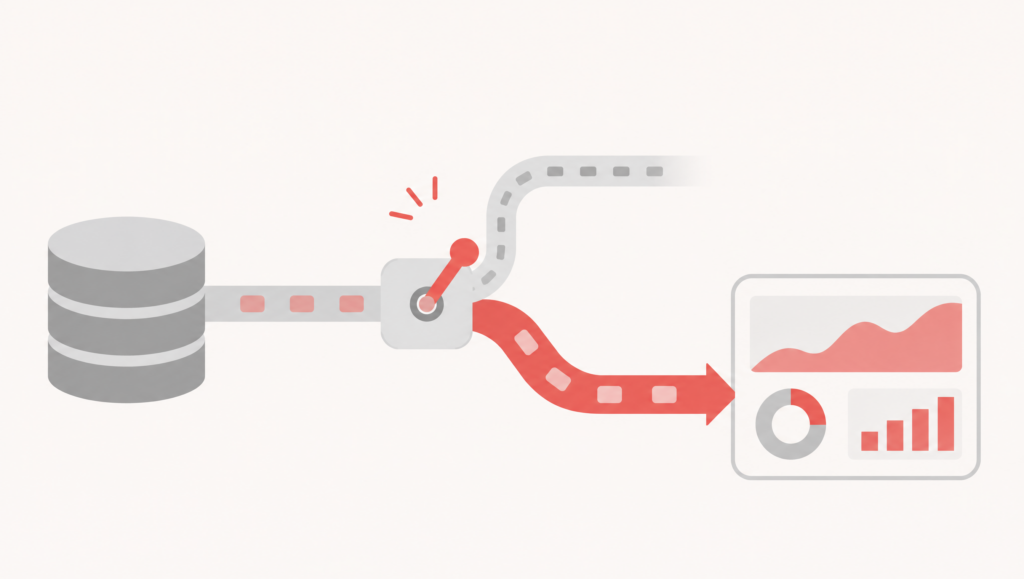
The Google Ads Data Manager API is now Google’s main route for sending first-party data into Google Ads: offline conversions, enhanced conversions for leads, Customer Match lists and session attributes. Through 2026, Google stopped accepting new users of these workflows in the Google Ads API. If your CRM sync, data warehouse or connector was built on the old endpoints, some uploads may already be failing.
This guide explains what the Data Manager API is, which workflows moved, what the allowlist error means and who can still use the old API. It also covers the June 2026 change to reporting data retention and how to plan the migration without losing conversions. It ends with a migration checklist per workflow.
What is the Google Ads Data Manager API?
Short answer: The Data Manager API is a Google API built for importing first-party data, such as conversions and customer lists, into Google’s advertising products. Google now recommends it as the primary API for these imports, while the Google Ads API remains the tool for managing campaigns and reporting.
Google tracks every change on its Google Ads API deprecations page. In practice, the split is simple: campaign management and reporting stay in the Google Ads API, and data imports move to the Data Manager API.
Which workflows moved to the Google Ads Data Manager API?
Short answer: Three import workflows moved in 2026: session attributes and IP address data in conversion imports (February 2), Customer Match uploads (April 1) and offline conversion imports, including enhanced conversions for leads (June 15). Each change blocks new adopters in the Google Ads API.
| Workflow | Effective date | Old service in Google Ads API | Who can keep using it for now |
|---|---|---|---|
| Session attributes and IP address in conversion imports | February 2, 2026 | Conversion upload | No new users; existing users should migrate |
| Customer Match | April 1, 2026 | OfflineUserDataJobService, UserDataService | Tokens that uploaded between October 2025 and March 2026 |
| Offline conversions and enhanced conversions for leads | June 15, 2026 | ConversionUploadService (UploadClickConversions) | Tokens that sent requests between December 17, 2025 and June 15, 2026 |
Details come from Google’s posts on Customer Match and offline click conversions.
What does the CUSTOMER_NOT_ALLOWLISTED_FOR_THIS_FEATURE error mean?
Short answer: It means your developer token is not on the allowlist for that workflow in the Google Ads API. Google allowlisted tokens that were already using the feature before each cutoff. If your token was not active in that window, requests fail with this error, and you need the Data Manager API.
The error often appears in a new integration, a new agency token or a connector that was rebuilt. It can also hit a company that paused uploads for a few months and then restarted. Check the token used by each tool, not just by your main integration.
Who can still use the Google Ads API for these imports?
Short answer: Developer tokens that were already using each feature during Google’s lookback window can continue for now. Google still recommends that they migrate to the Data Manager API for a better developer experience and access to new features. Treat the allowance as temporary and plan the move.
Third-party tools matter here. If you send conversions through a CRM connector or a data platform, ask the vendor which API it uses and whether it has migrated. Your own team may not control the token.
What changed with Google Ads reporting data retention?
Short answer: From June 1, 2026, Google reduced the retention period for granular reporting data, meaning daily, hourly and weekly data, to 37 months. Monthly, quarterly and yearly data remain available for 11 years. Older daily data is no longer available through the API.
If your dashboards compare daily performance over more than three years, store your own copy. A data warehouse export protects long-term analysis. Our guide to the marketing performance dashboard covers how to join ad data with CRM data in one place.
How do you plan the Google Ads Data Manager API migration?
Short answer: List every tool that sends data to Google Ads, find the token and API each one uses, then migrate one workflow at a time with a parallel test. Confirm that conversion counts and match rates hold steady before you switch off the old path.
- Inventory every integration: CRM, data warehouse, tag manager, agencies and connectors.
- Record the developer token and API version each one uses.
- Start with the workflow most at risk, usually offline conversions.
- Build the Data Manager API integration following Google’s migration guide.
- Run old and new in parallel for at least two weeks where allowed.
- Compare uploaded rows, match rates and attributed conversions.
- Switch off the old path only when results match.
Keep the data you send the same during the move. If you change what you upload and how you upload it at the same time, you cannot tell which change moved your numbers. Our guide to offline conversion tracking covers which CRM stages to send.
What can go wrong during the migration?
Short answer: The main risks are silent failures, duplicate conversions and lower match rates. A failed upload may not alert anyone, a parallel run can double count if both paths write to the same conversion action, and hashing or formatting differences can reduce matches. Monitor all three daily during the switch.
Smart Bidding learns from the conversions you send, so a drop or spike in uploads can change bids within days. Brief your paid media team before each switch and watch cost per conversion closely for two weeks after.
Google Ads Data Manager API migration checklist
Short answer: Use one row per workflow and tool. Fill in the current API, the token, the owner, the test dates and the result. A workflow is done only when the new path matches the old one and the old one is switched off.
| Workflow | Tool | Current API | Developer token owner | Parallel test dates | Match rate old / new | Status |
|---|---|---|---|---|---|---|
| Offline conversions | Not started / testing / done | |||||
| Enhanced conversions for leads | ||||||
| Customer Match | ||||||
| Session attributes | ||||||
| Reporting archive (37-month limit) |
Frequently asked questions about the Google Ads Data Manager API
Do we need the Data Manager API if we only upload conversions manually?
The API changes affect programmatic uploads through the Google Ads API. Manual uploads in the Google Ads interface follow different paths. Still, if you plan to automate conversion uploads later, build the integration on the Data Manager API from the start, because new Google Ads API adopters are blocked.
Does the Data Manager API replace the Google Ads API?
No. The Google Ads API still handles campaign management and reporting. The Data Manager API takes over first-party data imports, such as offline conversions and Customer Match. Most teams will use both: one to manage campaigns and pull reports, the other to send data in.
Will our existing offline conversion uploads stop working?
Not if your developer token sent upload requests between December 17, 2025 and June 15, 2026. Those tokens can keep using the Google Ads API for now. Tokens without recent requests receive the allowlist error. Google recommends migrating anyway, so plan the move before any further change.
Can we still get daily Google Ads data from four years ago?
No. Since June 1, 2026, daily, hourly and weekly reporting data is kept for 37 months. Monthly, quarterly and yearly data stays available for 11 years. If you need longer daily history, export it regularly to your own storage before it ages out.
Next step
This week, list every tool that sends data to Google Ads and write down which API and developer token each one uses. That single list will show whether you have a migration problem and where to start.
Want more practical guides on the Google Ads Data Manager API and paid media measurement? Browse the latest articles on the Blippu blog.